

FLUX 3 Video Edit Video to Video with One Prompt
Upload a clip up to 15 s, type one change, and the FLUX 3 edit keeps motion and sound.
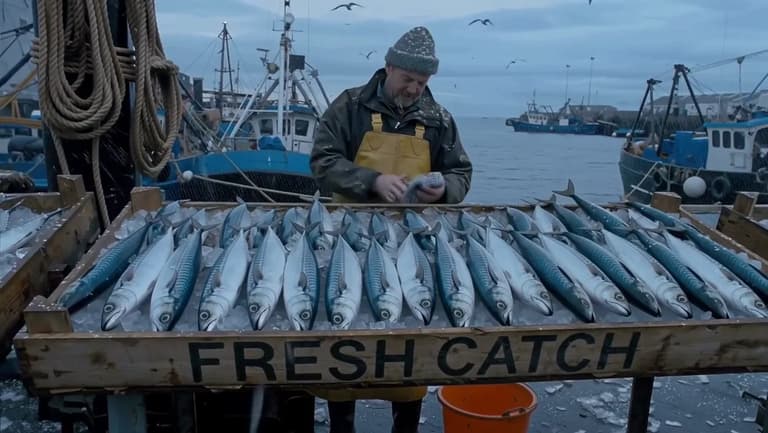
Make it snow heavily; give the scene a cold winter palette.
One clip, three FLUX 3 video edits
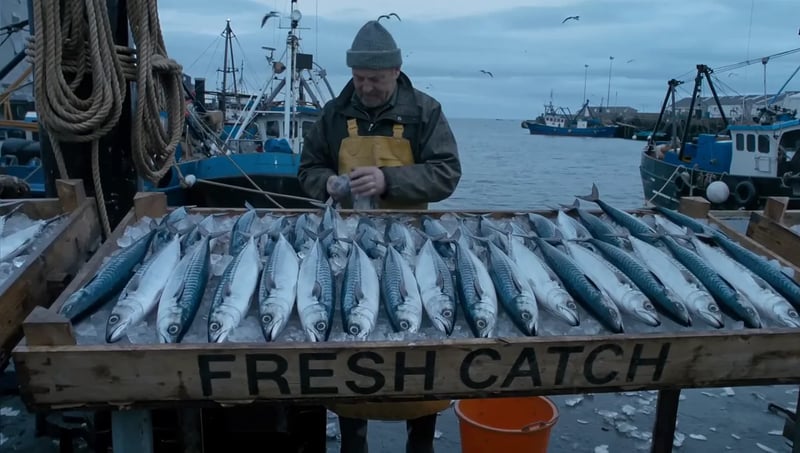
Switch between Black Forest Labs' harbor clip and three edits of it: snow added, a watercolor restyle and a new setting. The camera path, the timing and the framing stay the same in all four; only what each prompt named changes. Examples from Black Forest Labs' FLUX Video Edit page (bfl.ai/video-edit), not made on flux3.video.
- FLUX 3 Video Edit
- FLUX Video Edit
- video to video
- edit a video with a prompt
- AI video editor
What is FLUX 3 Video Edit?
A re-render of a clip you already have, not a new video from scratch.
FLUX 3 Video Edit is a video to video model: you give it a clip and one sentence, and it re-renders that clip with the change applied. Black Forest Labs, the company behind FLUX, calls it FLUX Video Edit. It does not generate a new video from scratch. The movement, the timing, the framing and the camera path all come from your footage, and the result keeps your clip's length, aspect ratio and soundtrack. Only what the prompt names is different.
That makes it a different kind of AI video editor from a timeline app. There are no masks, keyframes or layers to set up: to edit a video with a prompt, you describe the result you want, such as "Remove the orange bucket" or "Make it snow", and the model works out which parts of every frame need to change. It suits footage that is nearly right: an ad whose take is good but whose weather is wrong, a product demo that needs another color, a social clip that would work better as an illustration, or an AI-generated shot with one stray object in it.
FLUX 3 Video Edit at a glance
- Input
- One MP4 clip, up to 15 seconds and 50 MB
- Longer clips are turned away, not trimmed, so cut yours first.
- Prompt
- One sentence that names the change
- Describe the change, not the shot.
- Output length and shape
- Same length and aspect ratio as your clip
- Played back at 24 fps.
- Quality
- Up to 720p
- Sources above 720p are scaled down first. FLUX Video Upscale takes the result to 1080p, 2K or 4K.
- Sound
- Original audio kept
- Unless the prompt changes dialogue or sound. A silent clip stays silent.
- Account
- Free sign-up, runs in your browser
- Edits are paid for with credits.
- Commercial use
- Yes, with credits from a paid plan or credit pack
- Failed edits
- Credits go back automatically
What a FLUX 3 edit can change
Black Forest Labs lists these kinds of edits for FLUX Video Edit. Each one starts from a sentence: name what should change and leave the rest of the clip out of the prompt.
Remove, add or replace objects
Take out a bucket, put a seagull on a crate, swap one prop for another or replace a person. It is the remove object from video job without masking every frame by hand.
Change the setting or background
Move the action somewhere else with no green screen; Black Forest Labs' own examples turn a harbour into a Mediterranean quay and a living room into a forest clearing. Use it to change video backgrounds when the take is right and the location is not.
Rewrite on-screen text
Change the words on a sign, a label or a crate: a new price, a new product name or another language.
Change color, material, light or weather
Recolor an apron, swap a finish from matte to chrome, move the light to sunset, or add snow or rain to a dry street.
Change or translate dialogue
Rewrite a spoken line or translate it into another language, and the mouth movement is redone to match the new words.
Restyle the whole clip
Restyle a video as watercolor, animation or another film look. Every frame is redrawn in the new style while the camera move and the pacing stay as filmed.
Change what happens
Add or change an action, such as a character picking something up or turning to the camera, while the camera path and the timing of the clip stay the same.
Stack edits in passes
Name several changes in one prompt and they are applied together, or work in rounds: feed the result back in and describe the next change. Black Forest Labs says rounds keep more fine detail; each round is a new edit.
How to edit a video with FLUX 3
- 1

Trim the clip to 15 seconds
Cut the clip down to the part you need, up to 15 seconds and 50 MB, and save it as an MP4. A longer file is turned away rather than trimmed for you. A 1080p or 4K file can go in as it is: it is scaled to 720p for the edit.
- 2
Describe the one change
A good FLUX 3 video edit prompt says what should be different, not what the shot already shows: "Remove the orange bucket", "Add heavy snow". Whatever the prompt leaves out is meant to stay as filmed, so a short prompt is usually the right one. Mention dialogue or sound only if you want them changed.
- 3
Check the result, then upscale
Watch the edit next to your original, looking closely at faces, logos and small text. If one detail is still off, run a second pass on the result. When it is right, take it to FLUX Video Upscale for a 1080p, 2K or 4K file.
When a video edit comes back wrong
Most fixes are a change to the prompt, not to the clip. Find what you see, change the one thing in the middle column, and keep the rest as it was.
Parts you didn't mention changed too
- Change next
- Cut the prompt down to the change itself; drop words about the scene, the camera or the mood
- Leave alone
- The clip and the wording of the change
The change is faint or only shows in some frames
- Change next
- Say what, where and how much: "heavy snow covering the ground and the crates"
- Leave alone
- Everything else in the prompt
You asked for several edits and one went wrong
- Change next
- Run the edits that worked, then add the missing one in a second pass on that result
- Leave alone
- The changes that already came out right
A face, logo or small text looks different
- Change next
- Ask for it to stay as it is, or make the edit in a pass that doesn't involve that area
- Leave alone
- The change you asked for
A new line of dialogue doesn't fit the shot
- Change next
- Keep the new line about as long as the old one, so it fits the same mouth movement and timing
- Leave alone
- The rest of the soundtrack
The result looks softer than your original
- Change next
- That is the 720p output; take the finished edit to FLUX Video Upscale
- Leave alone
- Your prompt
The upload is refused
- Change next
- Trim to 15 seconds or less and under 50 MB, saved as MP4
- Leave alone
- Your prompt
FLUX 3 video to video or a new clip: which tool to use
FLUX 3 Video Edit is the only one of these that keeps your footage. The others make a new clip or improve one you have finished.
| Tool | You start with | You get | Pick it when | |
|---|---|---|---|---|
| This pageFLUX 3 Video Edit | A clip you already have, up to 15 seconds | The same clip with your change, same length and sound | The motion is right and one thing is wrong | Generate |
| FLUX 3 Image to Video | A photo or still frame | A new clip that starts from that picture | You have the image but no footage | Try |
| FLUX 3 Max | A written scene or a photo | A new 5–20 second clip with sound, made fast | You are making the shot from scratch | Try |
| FLUX 3 Draft Mode | An idea you want to test | A low-cost preview, then a full-quality version | You want to try a few directions before paying full rates | Try |
| FLUX Video Upscale | A finished clip, 480p or higher | The same clip at 1080p, 2K or 4K | Your edit is done and you need a sharper file | Try |
Plans and credits
Up to 1,000 images or 41 videos
- Up to 1,000 images
- Up to 41 videos
- All models, including Premium
Up to 2,500 images or 104 videos
- Up to 2,500 images
- Up to 104 videos
- All models, including Premium
Up to 7,500 images or 312 videos
- Up to 7,500 images
- Up to 312 videos
- All models, including Premium
· No card required
Failed runs are refunded automatically · Cancel anytime
FLUX 3 Video Edit questions
Sign-up is free, but an edit is not: one edit costs at least 12 credits and new accounts get 10, which is less than one edit. The sign-up credits can make a 2-second FLUX 3 Turbo clip or a few images instead. Edits are billed at 6 credits per second of your clip, so a full 15-second edit is 90 credits; use a plan or a credit pack for them.
Yes. The soundtrack of your clip carries through unchanged unless the prompt asks to change dialogue or sound. A clip with no audio comes back silent.
Clips over 15 seconds or 50 MB are turned away rather than trimmed, so cut out the part you need first. A longer scene can be split into 15-second pieces and edited one by one with the same prompt; check that the pieces match where they meet. 1080p and 4K files are accepted and scaled down to 720p for the edit, and the result comes back at up to 720p. For a 1080p, 2K or 4K file, run the edited clip through FLUX Video Upscale.
Black Forest Labs says faces, products and anything else the prompt doesn't name stay as they were shot. Because every frame is re-rendered, check fine detail such as logos and small print before you use the clip, especially after a full restyle, which redraws everything on purpose. If a detail drifts, keep the prompt to the one change and try again, or make bigger changes in separate passes.
Yes. Name each change in the same prompt and they are applied together in one pass. For a bigger job, work in rounds instead: use the first result as the new source clip and describe the next change. Black Forest Labs says this keeps more fine detail. Each round is a separate edit and uses credits again.
Yes, these names point to the same editing model. Black Forest Labs calls it FLUX Video Edit; other sites list it as FLUX.3 Edit, FLUX 3 Edit Video or FLUX.3 Edit video, and here it is FLUX 3 Video Edit. It comes from the FLUX 3 model family but is a separate tool from FLUX 3 video generation: it edits a clip you already have instead of making a new one.
FLUX 3 image to video starts from a still picture and invents the motion, so you get a new clip of 2 to 20 seconds. FLUX 3 Video Edit is FLUX 3 video to video: it starts from moving footage and keeps its motion, so the result has the same length and camera path as your clip. Use image to video when all you have is a picture, and the editor when the shot already exists.
Yes, when the edit is made with credits from a paid plan or credit pack. Make sure you have the rights to the clip you upload and to any people, logos or music in it.
More FLUX 3 video tools
Make a new clip, preview an idea cheaply, or take a finished edit to a higher resolution.
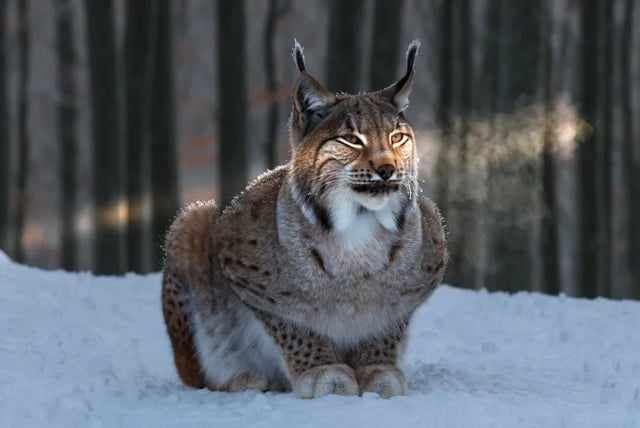
FLUX 3 Image to Video: Turn a Photo Into a Clip, Free to Try
Turn a photo into video with FLUX 3 image to video: upload a still, describe the motion, get a 2–20 second clip. Sign up free; 10 credits make your first clip.
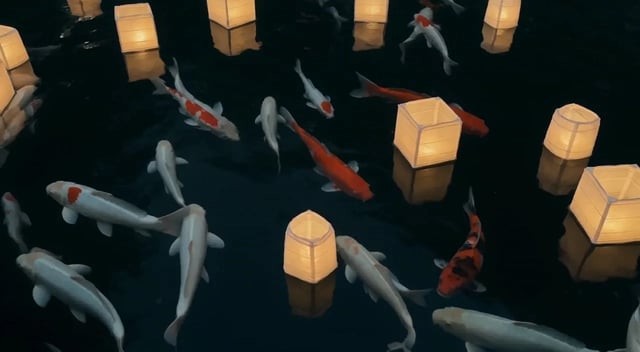
FLUX 3 Draft Mode: Fast Preview, Then Full Quality
Use FLUX 3 Draft Mode to preview a text-to-video or photo-to-video idea on FLUX 3 Turbo, then re-render the same shot at 720p or 1080p on FLUX 3.

FLUX 3 Video Upscaler
Upload a clip. Pick Precise to hold identity, or Creative to restore texture. Land at 1080p, 2K, or 4K. This FLUX 3 video upscaler runs FLUX Video Upscale, which regenerates your video at a higher resolution instead of stretching pixels. Start from 480p and up. Precise keeps faces and products exact. Creative rebuilds fine detail on water, grass, and scenery. Source audio stays with the clip.

FLUX 3 Max: Turn Text or a Photo into Video with Sound
Run FLUX 3 Max text to video or image to video with dialogue and ambient sound, 5–20 s at 720p or 1080p. See same-prompt tests timed on this site.
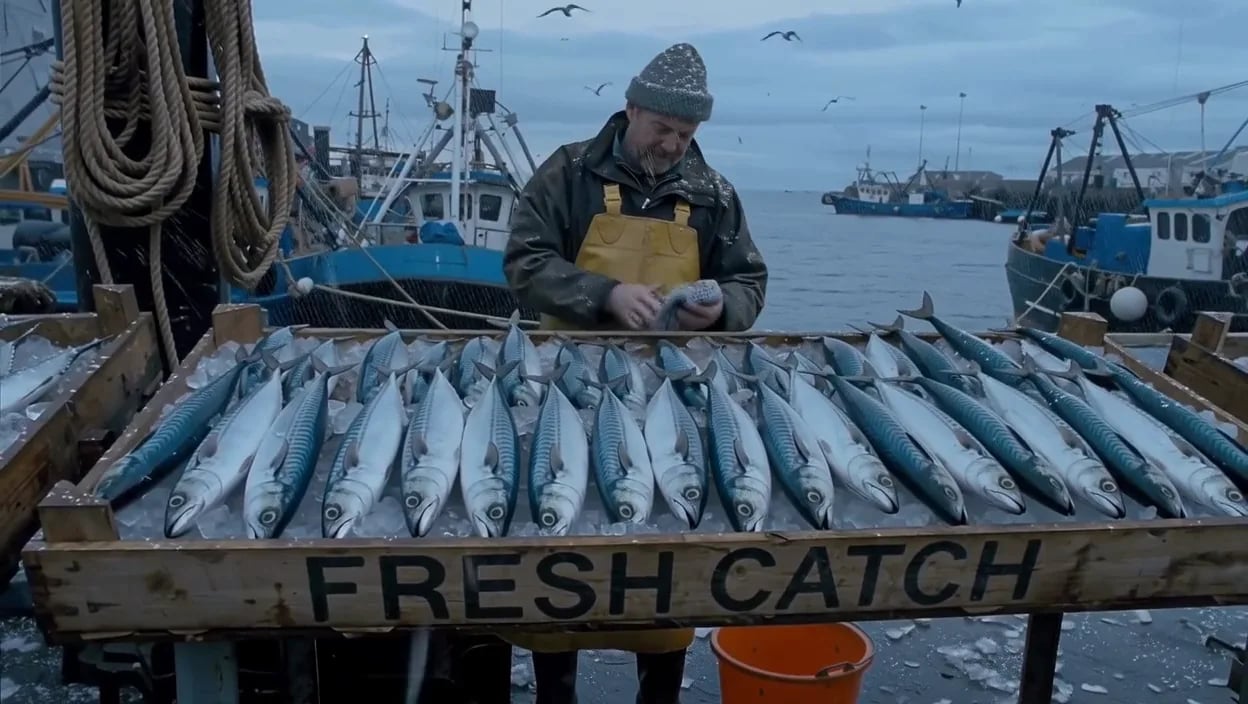
Change one thing. Keep the shot.
Upload a clip of up to 15 seconds, write the change, and get the same shot back with it applied. Background clip: a Black Forest Labs example.