

GuidesUpdated
How to Use FLUX 3 Video Where to Use It and Your First Clip
How to access FLUX 3: the API, licensed apps or this browser tool, then your first clip.
You can use FLUX 3 through Black Forest Labs' own API, through apps that license it, or in a browser tool like this one, with no install and no API key. Here is how to use FLUX 3 video on this site: pick text to video or image to video, write one shot, and generate. A short FLUX 3 Turbo preview is silent; sound and dialogue need FLUX 3 or FLUX 3 Max. Below: where to use FLUX 3, six steps to a first clip, and fixes.
Before you start
What to know before your first FLUX 3 video on this site, as of November 2026.
- Install
- None; it runs in your browser
- Account
- Free sign-up
- Without one, the image tool makes 3 Turbo Image stills a day. Turbo Image is a fast image model, not FLUX 3.
- Free credits
- Included at sign-up, no card
- Sound
- On FLUX 3 and FLUX 3 Max; FLUX 3 Turbo is silent
- Clip length
- 2–15 s on FLUX 3 Turbo, 5–20 s on FLUX 3 and FLUX 3 Max
- Resolution
- Up to 1080p
- 2K and 4K through FLUX Video Upscale.
- Watermark
- None on videos
- Images made with free credits carry one until you buy a plan or a credit pack.
- Commercial use
- With a paid plan or purchased credits
- What you make with free credits only is for personal use.
- Failed runs
- Credits come back automatically
Where to use FLUX 3
How to access FLUX 3 comes down to five places, side by side below. Which one fits depends on whether you write code, want to run a model on your own GPU, or just want a clip in the browser. Prices on this site are in credits, checked November 6, 2026.
| Where | What you can make | What you need | How you pay | |
|---|---|---|---|---|
| Black Forest Labs API and dashboardFor developers | Every FLUX 3 Video mode, up to 4K | A developer account and an API key | Per second of video, billed by Black Forest Labs | |
| Black Forest Labs PlaygroundFor FLUX 3 Image | FLUX 3 Image stills and edits | A Black Forest Labs account | Billed by Black Forest Labs | |
| Apps that license FLUX 3Inside tools you may already use | Whichever FLUX 3 features each app offers | An account with that app | That app's own plan | |
| Your own GPUOpen-weight models only | Images with FLUX 3 Image Klein, robot actions with FLUX 3 Action; no FLUX 3 video | A capable GPU and the Hugging Face weights | Free for non-commercial use under the FLUX Kommunity License | |
| This siteIn the browser | FLUX 3 and FLUX 3 Max video with sound, the FLUX 3 Turbo preview tier, video edit, upscale and FLUX 3 Klein stills | A free account; no install, no API key | Credits: FLUX 3 Turbo from 5 a second; FLUX 3 and FLUX 3 Max 35 a second at 720p, 175 per run minimum | Open the generator |
Make your first FLUX 3 video in the browser
This is how to use FLUX 3 on this site: six steps from an empty page to a saved clip, in the order the generator asks for them. Defaults are noted where they apply, so on a first try you can leave most settings alone.
- 1
Open the generator
Open the FLUX 3 generator on this site's homepage and sign in, or sign up for free. FLUX 3 Turbo is the default video model, so a first run starts as a cheap, silent preview.
- 2
Pick text to video or image to video
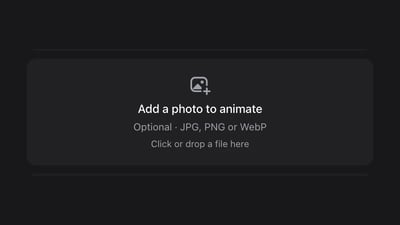
Text to video needs only a prompt and starts on the homepage generator. Image to video starts the clip on a photo you upload, on the image to video page; add an end frame when the clip must finish on a set picture.
- 3
Pick a FLUX 3 model
Keep FLUX 3 Turbo for a quick look at the idea. Switch to FLUX 3 or FLUX 3 Max when you want sound, dialogue and 720p or 1080p; Max is tuned for speed and closer prompt following.
- 4
Write one shot
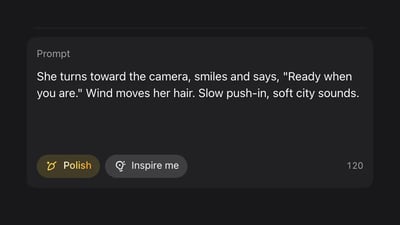
Describe one shot in plain sentences: the camera, who does what in order, the place and the light, then the sounds. For image to video, write what moves, not what the photo already shows.
- 5
Set length and shape
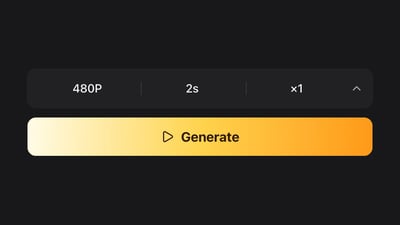
Choose the clip length and aspect ratio before you generate: 16:9 for YouTube, 9:16 for Reels or TikTok. Start short; Turbo begins at 2 seconds and FLUX 3 at 5, enough to see whether the prompt works.
- 6
Generate and save
Press Generate. The generator shows the cost before you start, and a failed run gives its credits back. When the clip is ready, play it with the sound on and download it.
Which FLUX 3 model to use for the job
Match the FLUX 3 model to what you need from this take; each row links to the page that covers it in detail. BFL's frame-position keyframes and FLUX 3 clip extension are not offered here; FLUX 3 takes up to 10 images in order, so for a longer story make several short shots and cut them together.
| Job | Use | Length and output | Sound | |
|---|---|---|---|---|
| Check an idea cheaply | FLUX 3 Turbo, this site's own fast preview tier | 2–15 s, 480P to 1080P | Silent | FLUX 3 Draft Mode |
| Add sound or dialogue | FLUX 3 or FLUX 3 Max | 5–20 s, 720p or 1080p | Yes, on by default | Text or image to video |
| Best-rated FLUX 3 for text to video | FLUX 3 Max | 5–20 s, 720p or 1080p | Yes, on by default | FLUX 3 Max |
| Change something in a clip you have | FLUX 3 Video Edit | Your MP4, up to 15 s; out at up to 720p | Keeps the original sound | FLUX 3 Video Edit |
| Make it 2K or 4K | FLUX Video Upscale | Clips up to about 20 s, to 1080p, 2K or 4K | Keeps the original sound | FLUX Video Upscale |
| Make a still image | FLUX 3 Klein | 1K, 2K or 4K stills | No sound (stills) | FLUX 3 Klein |
More on FLUX 3
What FLUX 3 is and which parts are open, how to prompt it well, and the FLUX 3 pages from the table above.

What Is FLUX 3? Video Model, Open Weights and Release Dates
What is FLUX 3? Black Forest Labs' FLUX 3 video model, Max, Image, Klein and Action explained: release dates, is FLUX 3 open source, and where to try it.

FLUX 3 Prompt Guide: Write Video Prompts with Real Examples
A FLUX 3 prompt guide for video: write a FLUX 3 video prompt with camera, sound and dialogue, and copy FLUX 3 prompts shown with the clips they made.
FLUX 3 Image to Video: Turn a Photo Into a Clip, Free to Try
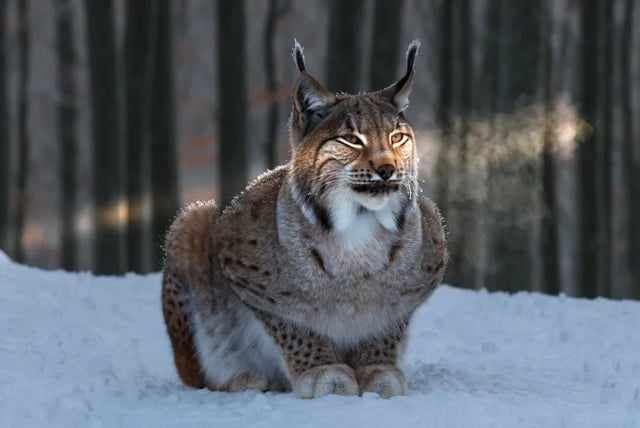
Turn a photo into video with FLUX 3 image to video: upload a still, describe the motion, get a 2–20 second clip. Sign up free; 10 credits make your first clip.
FLUX 3 Draft Mode: Fast Preview, Then Full Quality
Use FLUX 3 Draft Mode to preview a text-to-video or photo-to-video idea on FLUX 3 Turbo, then re-render the same shot at 720p or 1080p on FLUX 3.

FLUX 3 Max: Turn Text or a Photo into Video with Sound
Run FLUX 3 Max text to video or image to video with dialogue and ambient sound, 5–20 s at 720p or 1080p. See same-prompt tests timed on this site.
A first FLUX 3 prompt that works
A first FLUX 3 prompt needs four parts, each a plain sentence: the shot and camera, who does what, where it happens, and what you hear. Skip the sound line on FLUX 3 Turbo, which is silent, and add it back when you switch to FLUX 3 or FLUX 3 Max. FLUX 3 needs no negative prompt; describe what should be there instead.
A suggested starting point: "Handheld medium shot. A barista slides a latte across the counter and smiles at the customer. A small café in the morning, sun through the front window. Milk steaming, cups clinking, and she says: 'Here you go.'"
The FLUX 3 Prompt Guide, linked below, has prompts we ran with the clips they made, image-to-video prompts and fixes for when a take misses.
1Shot and camera. 2Who does what, in order. 3Where it happens, and the light. 4What you hear.
- Shot and camera — A shot size and at most one move: "handheld medium shot", "slow push-in".
- Who does what, in order — One main action, then a smaller one, joined with "then" or "as". Verbs do more than adjectives.
- Where it happens, and the light — The place in a few words and what the light is doing: "sun through the front window".
- What you hear — Two or three sounds you could point to, plus any spoken line in quotes after the speaker. FLUX 3 and FLUX 3 Max only.
First-run problems and fixes
Snags a first FLUX 3 clip is likely to hit, worked out from how each model and limit behaves here, with the one change to make next.
The clip has no sound
- Change next
- Switch to FLUX 3 or FLUX 3 Max; FLUX 3 Turbo previews are silent
- Leave alone
- The prompt and any start frame
You cannot start a FLUX 3 or FLUX 3 Max run
- Change next
- Check the balance against the per-run minimum; preview on FLUX 3 Turbo first, or add credits
- Leave alone
- The settings you chose
Video Edit rejects your upload
- Change next
- Trim the MP4 to 15 seconds or less and under 50 MB
- Leave alone
- The edit prompt
The video drifts away from your photo
- Change next
- Describe only the motion, the camera and the sound; the model already sees the photo
- Leave alone
- The uploaded image
An action stops halfway through
- Change next
- One action per beat, or a longer clip
- Leave alone
- The camera and the place
How to use FLUX 3: questions
You can start free. New accounts get 10 credits with no card, enough for one 2-second FLUX 3 Turbo clip at 480P, which is silent, or five 1K FLUX 3 Klein stills. Clips with sound run on FLUX 3 and FLUX 3 Max, from 175 credits for 5 seconds at 720p. Without an account you can make 3 still images a day with Turbo Image, a fast image model that is not FLUX 3.
For video you need a free account. Signed out, the text-to-image tool gives you 3 free stills a day on Turbo Image, a fast image model that is not FLUX 3, after a short wait and a quick human check. When you sign up, the images you made signed out move into your account.
Not on this site: you use FLUX 3 in the browser with a free account. Black Forest Labs' own API does need a developer account and a key. To call FLUX 3 from your own code here, this site also has a REST API for accounts that have bought a plan or a credit pack.
No. FLUX 3 Turbo is this site's own fast preview tier, not a Black Forest Labs model, and it is not part of Black Forest Labs' FLUX 3 lineup. Use it to check an idea cheaply before a full render on FLUX 3 or FLUX 3 Max; it has no sound.
Yes. This site runs a remote MCP server, so Claude, ChatGPT, Cursor and other MCP apps can make FLUX 3 videos and images from a conversation, paid from your credits here. Connecting needs an account that has bought a plan or a credit pack; the steps are on this site's Connect page.
Yes, if you made it with a paid plan or purchased credits. Videos and images made only with free credits are licensed for personal, non-commercial use. Videos carry no watermark either way; images made with free credits do.
Only the open-weight parts: FLUX 3 Image Klein for images and FLUX 3 Action for robotics, both on Hugging Face. FLUX 3 Video and FLUX 3 Max are hosted only, so video runs through Black Forest Labs' API, an app that licenses it, or a browser tool like this one. The What Is FLUX 3 guide lists which weights are out and their licence.
Try FLUX 3 now
Open the generator, write one shot and run a short FLUX 3 Turbo preview. When the picture looks right, switch to FLUX 3 or FLUX 3 Max for the version with sound.