Upscale this clip to 4K. Keep faces sharp. Restore water and grass texture.
Upload a clip. Pick Precise to hold identity, or Creative to restore texture. Land at 1080p, 2K, or 4K.
FLUX Video Upscale regenerates your video at a higher resolution instead of stretching pixels. Start from 480p and up. Precise keeps faces and products exact. Creative rebuilds fine detail on water, grass, and scenery. Source audio stays with the clip.

Upscale this clip to 4K. Keep faces sharp. Restore water and grass texture.
Upscale this clip to 4K. Keep faces sharp. Restore water and grass texture.
A higher-resolution pass when a generated or filmed clip still looks soft for delivery.
FLUX Video Upscale takes a video from 480p and up and regenerates it at 1080p, 2K, or 4K. It is built to keep FLUX 3 motion and style at those sizes, and it also accepts clips you did not generate here. Use Precise when a face, product, or brand mark must stay exact. Use Creative when you want more repair on smudged faces and gridded textures such as water and grass. The source audio track stays with the file. An optional prompt can steer the extra detail Creative adds.
Why this pass
Four things this tool does that simple stretch-to-4K does not.
FLUX Video Upscale uses a 1.5x to 3x factor, defaulting to 2x. From an HD clip that lands near 1080p, 2K, and 4K. It regenerates the frame at the new size instead of interpolating pixels, so broadcast and campaign formats get real extra resolution, not a stretched file.

Precise mode sharpens what is already there and holds identity. Use it on FLUX Video Upscale when the shot has a real person, a packshot, or a logo that cannot drift. If Creative would invent new detail on a face you need to keep, switch to Precise before you generate.

Creative mode is the more aggressive 4K video upscaler pass. It repairs smudged faces, soft eyes, and the gridded artifacts that show up on water and grass as resolution climbs. Faces and products can drift, so save it for scenery, crowds, and generated footage where extra detail matters more than a locked identity.

FLUX Video Upscale keeps the source audio track. It does not rebuild the sound. Add an optional prompt when you want Creative to steer the extra detail it invents — keep hair, restore fabric, or clean water — without changing the shot you already like.

Upload, pick size and mode, then generate the higher-resolution clip.

Add a video from 480p up. Keep the least compressed source you have so FLUX Video Upscale has real detail to rebuild.

Choose the output size, then Precise if identity must hold, or Creative if you want more texture repair.
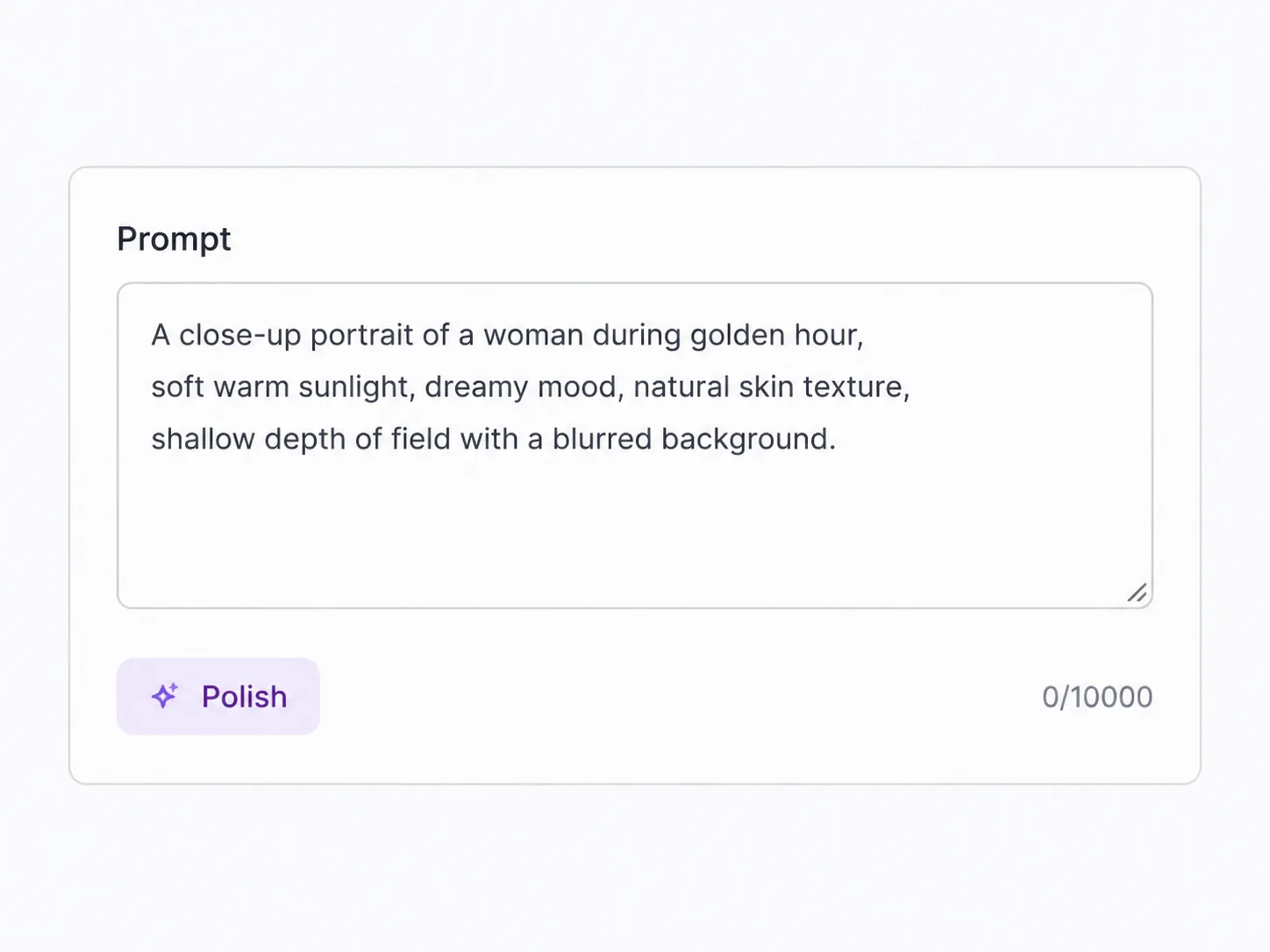
Leave it blank for a straight upscale. Write a short steer when Creative should restore a specific surface.

Run the job, watch the result in your library, and download the mp4 with the original audio still attached.
Where it lands
Jobs that need 1080p, 2K, or 4K without a stretched look.
Take a FLUX 3 draft or 720p shot and run FLUX Video Upscale so the same motion holds at 2K or 4K.
Use Precise mode when a talking head or talent close-up has to stay the same person at a larger size.
Send water, grass, and crowd plates through Creative mode so the 4K video upscaler can repair grids and smear.
Hold packshots and marks with Precise, then deliver the 2K or 4K file without a warped logo.
Upscale a hero clip once, then cut 16:9 and 9:16 from the same higher-resolution file.
Point FLUX Video Upscale at filmed or generated footage. Start from the cleanest source you have.
Generate the shot first, then come back here to upscale it.
FLUX Video Upscale regenerates each frame at a higher resolution using a 1.5x to 3x factor. From HD, that lands near 1080p, 2K, and 4K. It does not stretch the pixels you already have.
Use Precise when a face, product, or brand mark must stay exact. Precise sharpens what is already there and holds identity. Switch to Creative only when you can accept some drift for extra texture.
Creative restores and invents fine detail more aggressively. It is the sharper pass on generated footage, water, grass, and crowds. Faces and products can drift, so it is not the default for talent close-ups.
Yes. FLUX Video Upscale accepts a video from 480p up, including filmed footage. It is tuned for FLUX 3 output and performs best there, but any reasonably clean source can go through the same 1080p / 2K / 4K path.
Yes. The output keeps the source clip’s audio track. Sound is not regenerated and is not billed as a separate step.
Source clips are limited to about 20 seconds and 50 MB. Longer files are rejected before processing, so they are not truncated. Keep the clip short and the file reasonably small before you upload.
Yes. An optional prompt can steer the extra detail Creative adds — restore fabric, clean water, keep hair. Leave it blank when you want a straight resolution pass.
For a short clip, yes. 1080p upscaling uses 2 credits per second of source video (2K 3, 4K 6), so the {credits.signup} signup credits on this site cover a short 1080p clip; longer clips or higher tiers need more. The generator shows the estimate before you start.
Next steps
Generate a new shot, or stay in tools to finish the edit.
Upload a clip, pick 1080p, 2K, or 4K, and generate a sharper delivery file.