Make it snow heavily; give the scene a cold winter palette.
Upload a clip, describe the change, and FLUX 3 re-renders it — motion, timing, and framing stay put.
FLUX 3 Video Edit takes an existing video and a plain-language instruction, then re-renders the clip so only what you asked for changes. Add snow to the scene, restyle the whole shot, or move the setting — the camera move, pacing, and framing carry over from your source clip.

Make it snow heavily; give the scene a cold winter palette.
Make it snow heavily; give the scene a cold winter palette.
A prompt-driven pass over a clip you already have, not a from-scratch generation.
FLUX 3 Video Edit starts from your own footage instead of a blank prompt. Upload a clip up to 15 seconds and about 50 MB, describe the change in plain language, and FLUX 3 re-renders the video with that change applied. Motion, timing, and framing come from the source clip, so a camera pan or a walk-cycle stays intact — only the part you described changes. Use it to add or remove an object, change the weather or season, move the setting, restyle the whole shot, or adjust on-screen dialogue.
What you can change
The same source clip, re-rendered three different ways.
Describe one clear change — add snow, swap a color, remove or add an object — and FLUX 3 Video Edit applies it across every frame while the rest of the shot holds still. This is the most reliable use of the tool: one instruction, one visible change, source motion untouched.

Ask for a full visual style — watercolor, a different film look, an illustrated treatment — and FLUX 3 Video Edit re-renders every frame in that style while keeping the original camera move and pacing. Good for turning existing footage into a stylized cutdown without re-shooting.

Move the same action to a different place — a different backdrop, time of day, or location — while the subject's motion and the camera's framing stay exactly as filmed. Useful when the performance is right but the location isn't.

Upload, describe the change, generate.
Add a video up to 15 seconds and about 50 MB. Clips above 720p are downscaled before editing, so an HD source works well.
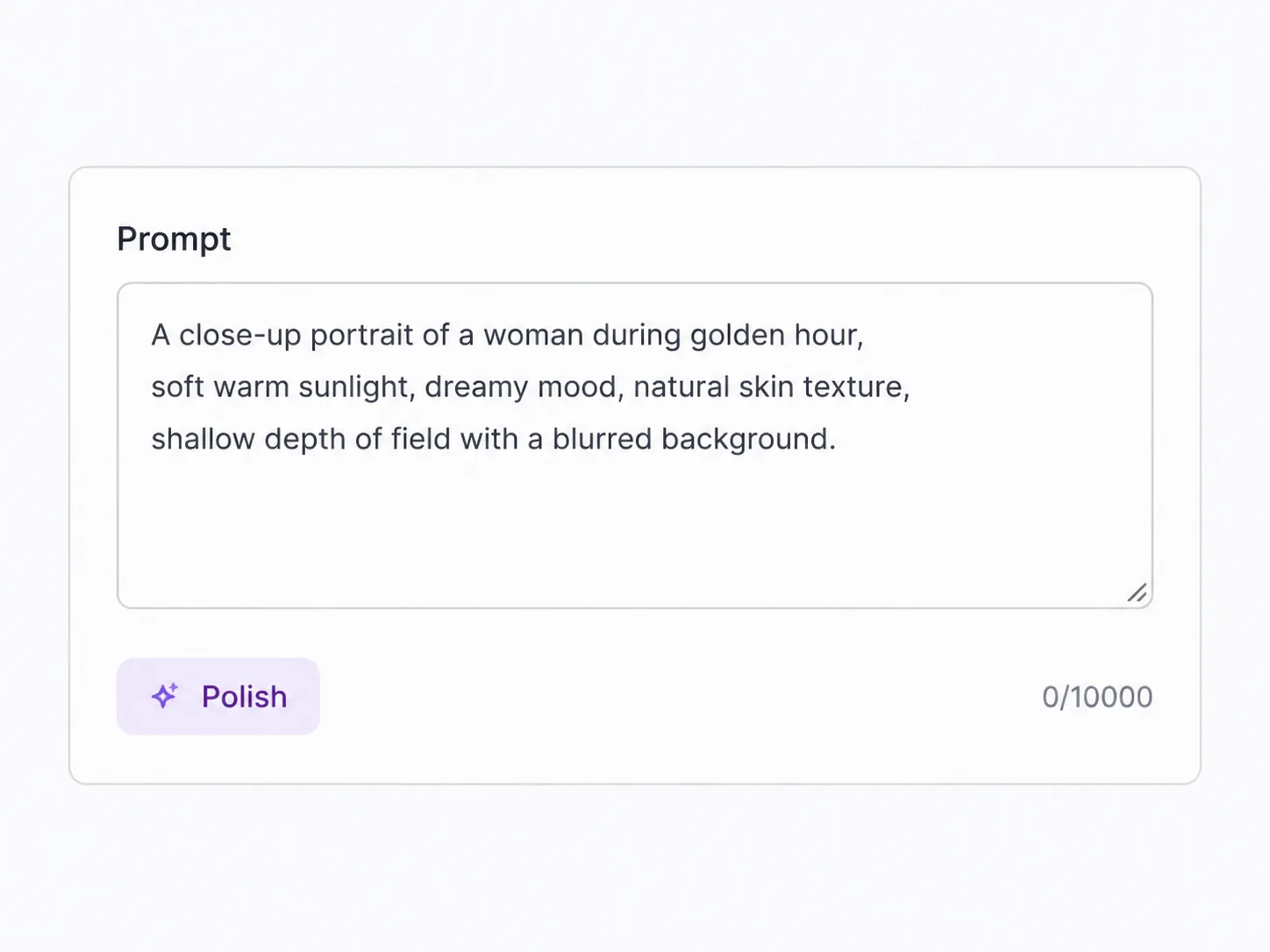
Write one clear instruction — a color, an object, a season, a setting, or a full style. Keep it to the change you want; the rest of the shot is left alone.
Run the edit and watch the result in your library. The output matches your source clip's length, resolution, aspect ratio, and frame rate.
Who edits with a prompt
Jobs that need one targeted change to footage you already have.
Take one hero clip and produce a snow, rain, or sunset version for different campaigns without reshooting on location.
Re-render a product demo clip in a different finish or color so the same footage covers every product variant.
Restyle a test clip in a few visual directions to agree on a look before committing to a full production.
Move a performance to a different backdrop when the take is right but the location isn't.
Turn one piece of footage into several visually distinct cutdowns for different placements from a single source clip.
Adjust what a subject appears to say in a short clip when the original line needs to change.
One clear instruction gets the most reliable result.
Name the single change you want — an object, a color, a season, a setting, or a full style — and let FLUX 3 Video Edit hold the rest of the shot steady. Prompts that stack several unrelated changes in one line are more likely to affect parts of the clip you wanted to keep, so run one edit at a time and layer a second pass on the result if you need more than one change. Mention specifics that matter ("heavy snow," "hand-painted watercolor," "sunset beach") rather than vague direction, and skip camera or motion instructions entirely — FLUX 3 Video Edit already reads those from your source clip.
Generate the shot first, or jump to another FLUX 3 tool.
FLUX 3 Video Edit re-renders a video you upload according to a text prompt, using FLUX 3. It keeps the source clip's motion, timing, and framing, and changes only what your prompt describes.
Upload a clip up to about 15 seconds and 50 MB. Sources above 720p are downscaled to 720p before editing, and the output keeps your source clip's duration, resolution, aspect ratio, and frame rate.
Yes. Source audio carries through the edit unless your prompt specifically asks to change dialogue or sound.
Yes. A prompt like a full restyle (for example, a watercolor look) re-renders every frame in that style while the original camera move and pacing stay the same.
FLUX 3 Video Edit bills 6 credits per second of output, with a 12-credit minimum per run. The generator shows the exact estimate before you start.
No — FLUX 3 Video Edit always matches your source clip's resolution (downscaling sources above 720p first). If you need a specific delivery resolution, run the result through FLUX Video Upscale afterward.
Keep the prompt to the change you actually need. One clear instruction gets the most reliable result; stacking several unrelated changes in one prompt is more likely to affect parts of the shot you wanted to keep.
FLUX 3's text-to-video and image-to-video modes create a new clip from scratch. FLUX 3 Video Edit starts from a video you already have and changes only what you describe, keeping the rest of the footage intact.
Next steps
Finish the clip, or open another FLUX 3 workspace.
Upload a clip, describe the change, and generate a re-rendered video.